Add Threads Profile Link on AlinkMe (MySpace – Personal Links)
AlinkMe helps you manage all your social media profiles from one place. By adding your Threads profile link, visitors can easily find and follow you using your single AlinkMe profile link.
Step 1: Login to AlinkMe
-
Visit 👉 https://www.alinkme.com
-
Click on Login
-
Enter your registered email address and password
-
Click Login
-
You will be redirected to your MySpace
Step 2: Open Personal Links in MySpace
-
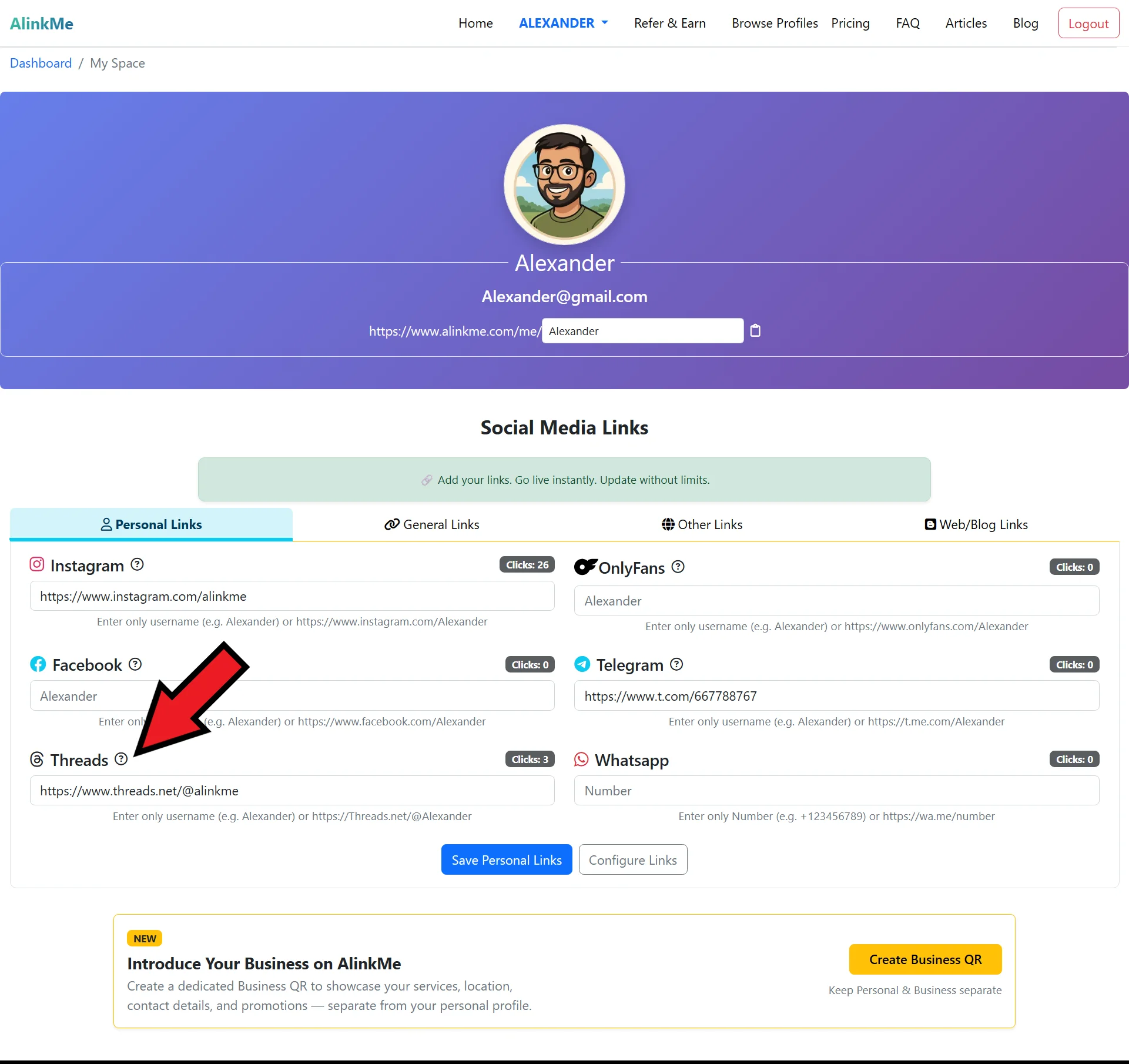
On the MySpace page, scroll down to Social Media Profile Links
-
Make sure the Personal Links tab is selected
-
You will see input fields for different platforms, including Threads
Step 3: Add Threads Profile Link
-
Locate the Threads input field
-
Paste your Threads profile URL
-
(Example:
https://www.threads.net/@yourusername) -- If you can’t find your Threads profile link, click the question mark icon. That page will help you locate your social media profile .
-
-
Click Save Personal Links
Your Threads profile link will now appear on your public AlinkMe page.
🔹 How to Find Your Threads Profile Link (Step by Step)
Before adding your Threads profile link to AlinkMe, you need to copy the correct profile URL from Threads.
Method 1: From Threads Mobile App
-
Open the Threads app
-
Tap on your profile icon (bottom right)
-
Tap the Share Profile option
-
Select Copy Link
-
Your Threads profile URL is now copied
Method 2: From Threads Website (Desktop)
-
Login to your Threads account
-
Click on your profile picture
-
Copy the URL from the browser address bar
Example Threads profile link:
https://www.threads.net/@yourusername
🔹 Paste Threads Link into AlinkMe
-
Go back to your AlinkMe MySpace
-
Paste the copied Threads profile URL into the Threads field
-
Click Save Personal Links
Your Threads profile is now successfully connected to AlinkMe.
🔹 Why Add Threads Profile Link on AlinkMe?
Adding Threads to your AlinkMe profile helps you:
-
Share one link for all social platforms
-
Grow your Threads followers
-
Keep your bio links clean and professional
-
Update links anytime without changing your main profile link
🔹 Share Your AlinkMe Profile
Once your Threads link is added:
-
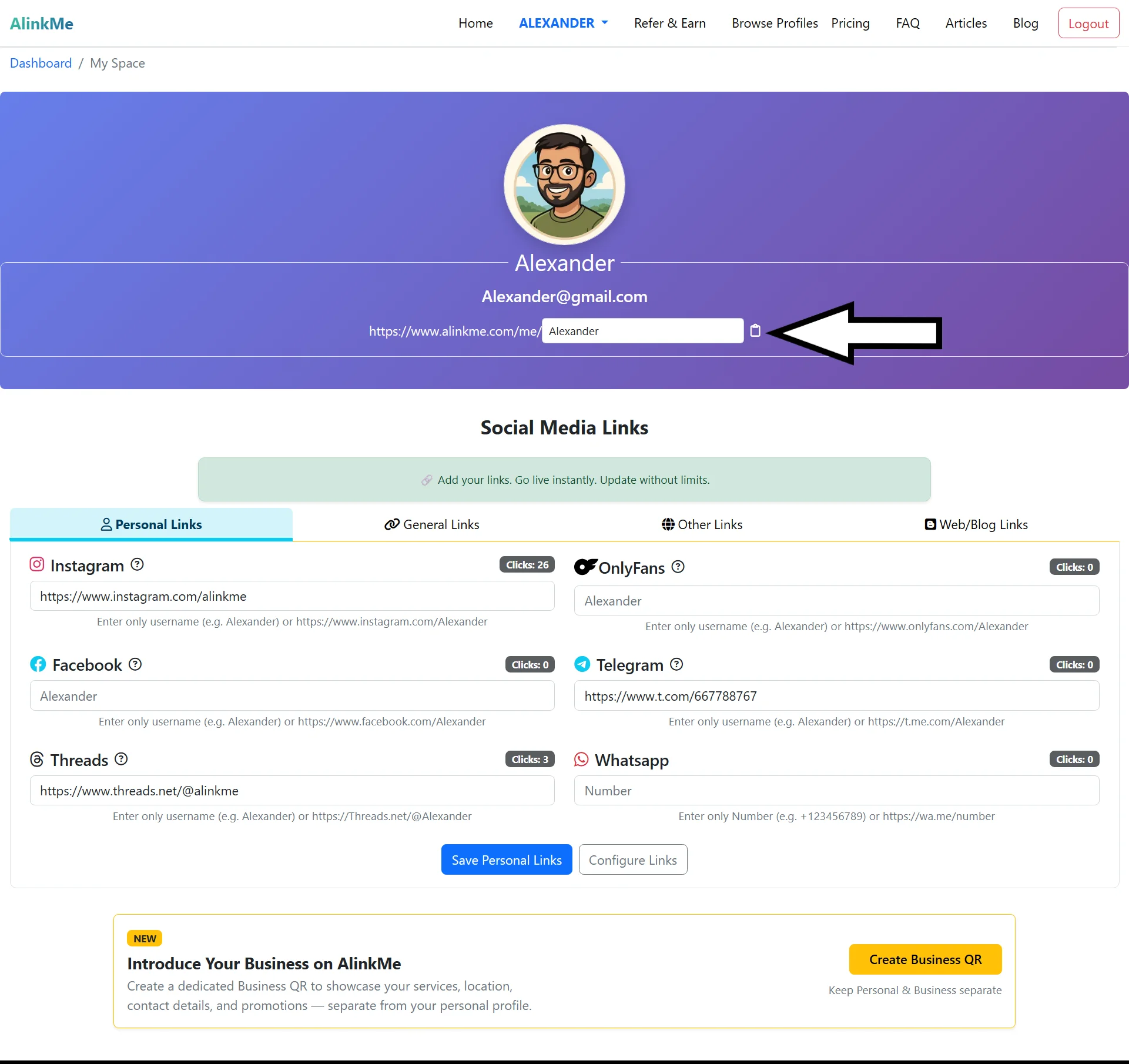
Copy your AlinkMe public profile URL
-
Share it on Instagram bio, WhatsApp profile, email signature, or website
One link connects all your social media profiles.
🔹 Start Managing Your Social Links Today
Login to AlinkMe and add your Threads profile link in minutes.