Login to AlinkMe
AlinkMe allows you to manage all your social media profile links from one page. To get started, you need to login to your AlinkMe account.
Steps to Login:
-
Visit 👉 https://www.alinkme.com
-
Click on the Login button
-
Enter your registered email address and password
-
Click Login
-
You will be redirected to your MySpace
MySpace – Your Profile Management Page
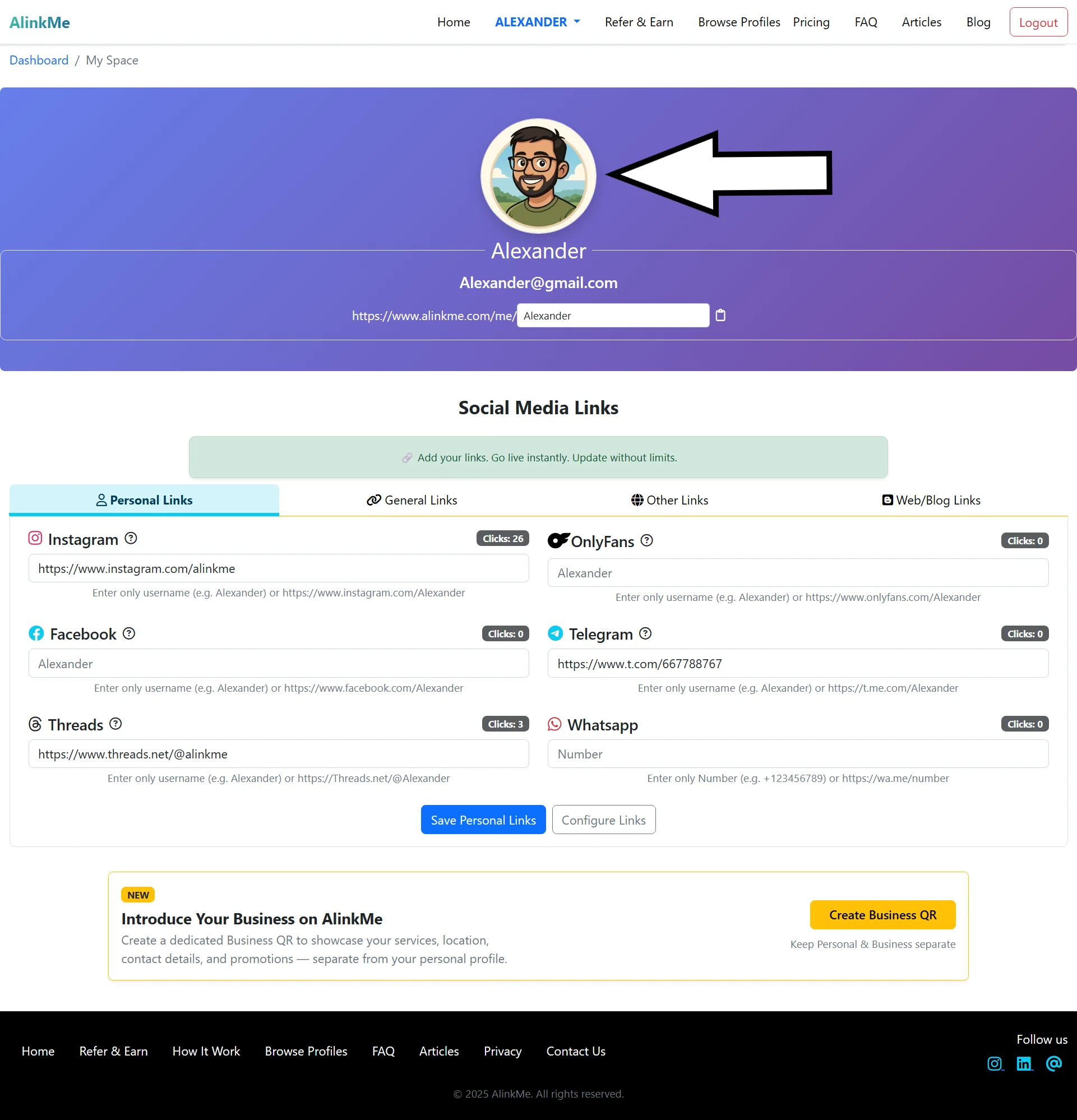
After login, you will land on the MySpace page.
This is your main profile management area where you can:
-
Upload your profile image
-
Set your public profile link
👉 As shown in the image above, MySpace displays your profile details at the top and social media links below.
Add or Update Your Profile Image
Your profile image helps visitors identify you and makes your profile look more professional.
Steps to Add Profile Image:
-
On the MySpace page, locate the Profile Image section
-
Click Upload / Change Profile Image
-
Select an image from your device
(Recommended: clear photo or brand logo in .jpg, .jpeg, .png format) -
Save the changes
Once uploaded, your profile image will appear exactly like the image shown above, visible to everyone who visits your AlinkMe link.
Start Managing Your Links with AlinkMe
Login to AlinkMe today and create a professional all-in-one social media profile page in minutes.