Customizing your AlinkMe profile page is simple and powerful. In this quick video tutorial, we walk you through how to update button styles, change button and text colors, apply themes, and use the live preview section to see changes instantly.
Whether you're building a personal brand or creating a professional business profile, this guide will help you design a clean and attractive page in just a few minutes.
What You’ll Learn in This Video
In this tutorial, we cover:
✔ How to open the Configuration section
✔ How to change different button styles (round, square, outline, etc.)
✔ How to update button background colors
✔ How to customize text color and hover effects
✔ How to apply and switch themes
✔ How to use the live preview panel to see changes instantly
Step 1: Access the Configuration Page
After logging into your AlinkMe account:
-
Go to your Dashboard
-
Click on Configuration
-
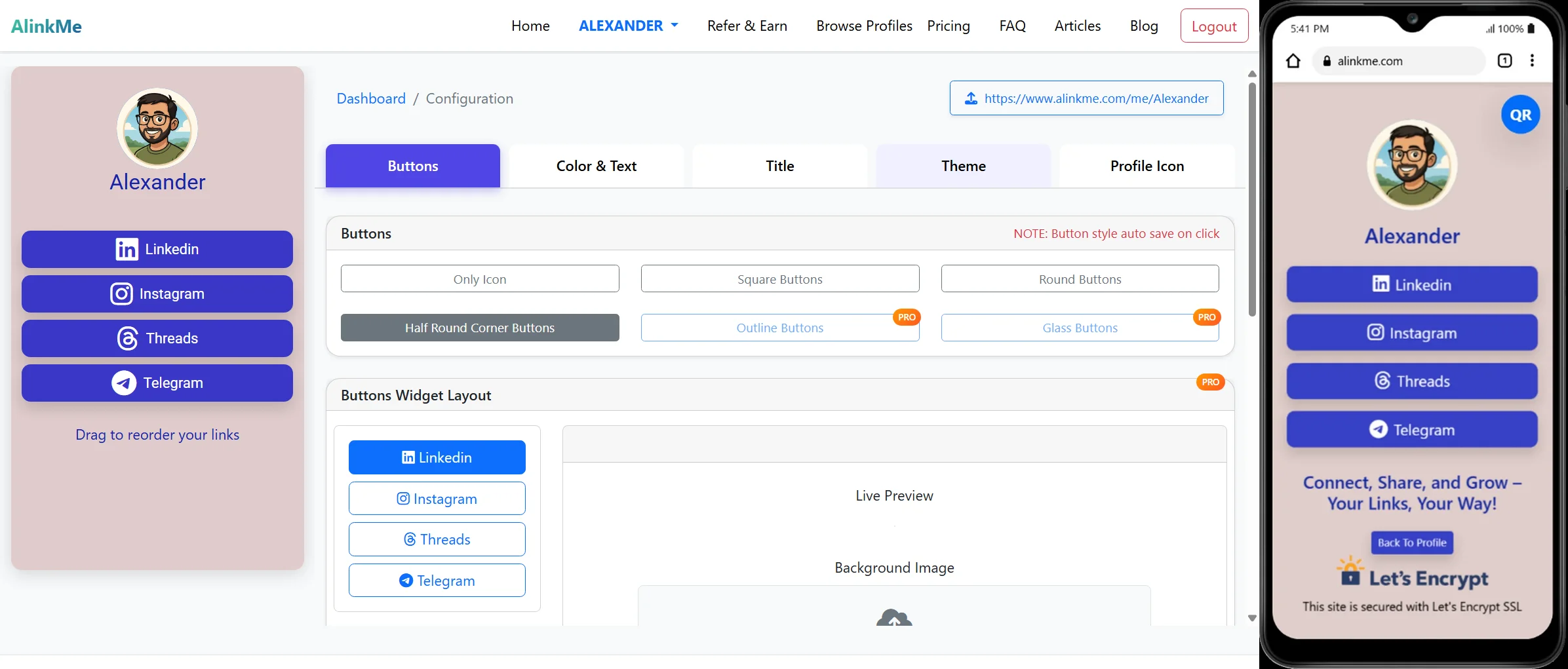
Choose the section you want to edit:
-
Buttons
-
Color & Text
-
Title
-
Theme
-
The video shows exactly where to click and how to navigate.
Step 2: Update Button Styles
You can choose from multiple button styles such as:
-
Round Buttons
-
Square Buttons
-
Outline Buttons
-
Icon-Only Buttons
Each style gives your profile a different look and feel. The preview section updates immediately so you can see which design fits your brand best.
Step 3: Change Button & Text Colors
Inside the Color & Text tab, you can:
-
Set the button background color
-
Change the button text color
-
Customize hover background color
-
Adjust hover text color
Click Apply Changes, and your preview will reflect the updates instantly.
Step 4: Apply Themes
Themes allow you to change the overall look of your profile page.
This includes background styles and visual layouts that make your page stand out.
The video demonstrates how to switch between themes and see the effect in real time.
Live Preview – See Changes Instantly
One of the most powerful features of AlinkMe is the live preview panel on the left side.
As you update styles, colors, and themes, your profile preview updates automatically — so you always know exactly how your public page will look.
Why Customize Your AlinkMe Profile?
Customizing your profile helps you:
✔ Match your personal or business branding
✔ Improve visual appeal
✔ Increase visitor engagement
✔ Create a professional online presence
✔ Stand out from other profiles
Watch the Full Tutorial Now
🎬 Watch the complete step-by-step video above and start customizing your AlinkMe profile today.
👉 Login to your account and try it yourself.